VSCode 1.142 - Canvases bring interactive workspaces to agent workflows
VSCode 1.142 has a feature that looks particularly interesting to me: Canvases. Rather than asking an agent to describe everything in chat, you can work together on an interactive interface beside it. A Kanban board you can both update sounds a bit more useful than repeatedly asking “what is left to do?” 🤣
Canvases in VSCode
Official announcement
VSCode 1.142 release notes - Canvases (Preview)
The release notes explain it like this:
Canvases are interactive interfaces to collaborate with an agent. A canvas opens beside the chat, where you and the agent can inspect and update the same artifact instead of coordinating solely through prompts.
What is new?
The important part is that a canvas is interactive in both directions, not just a visualisation of what the agent has done.
Microsoft’s example is a Kanban board. You can create and move cards yourself, while the agent can break a feature into tasks, update their status and add work it discovers along the way. Both of you work on the same board rather than maintaining separate versions of the plan.
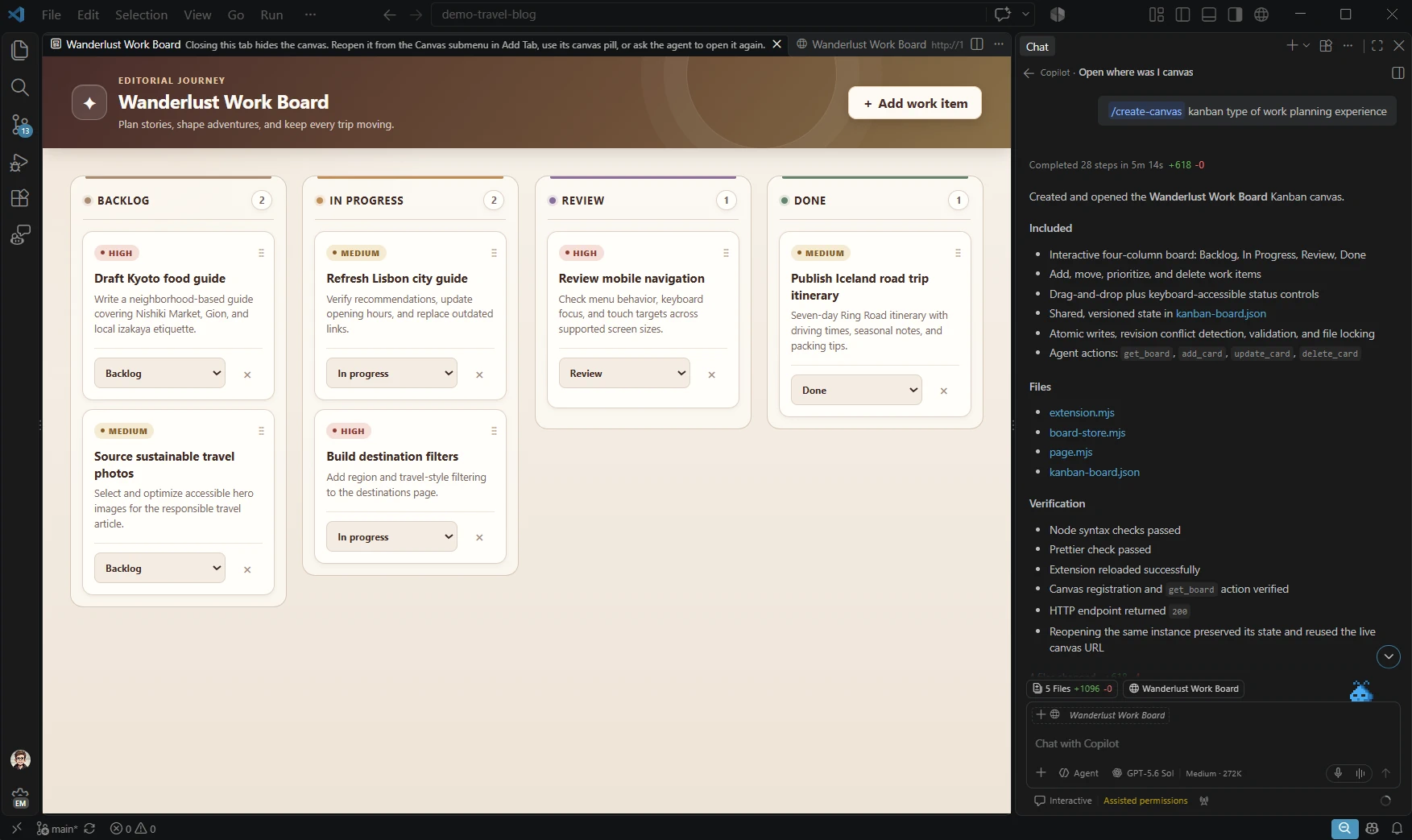
Every canvas is provided by a canvas extension. These can be created for your project or supplied through a plugin. GitHub’s documentation gives examples including issue triage boards, release checklists, dashboards and document workspaces, so this is not limited to moving cards around.
Canvases work in both the VSCode editor window and the Agents window. Canvas extensions are also supported in the GitHub Copilot app.
How to try it
Canvases is in Preview, even though VSCode 1.142 itself is a stable release. In VSCode, it is available in the desktop app for local sessions using the Copilot harness. Do not assume it works with every harness or execution target.
- Update to VSCode 1.142 or later.
- Open Settings with
Ctrl + ,, search forchat.canvases.enabledand enable it. - Start a new session and select Copilot in the harness picker.
- In chat, enter
/create-canvasand describe the interface and actions you want.
For example, you could ask for a Kanban board where you can move cards and the agent can add tasks and update their status. The skill creates a canvas extension in your workspace and opens its canvas.
If you would rather use an existing canvas, the release notes currently direct you to install a chat plugin containing a canvas extension through the GitHub Copilot app. Then return to VSCode and ask the agent to list and open the available canvases.
Once a canvas extension is installed, you can also open an available canvas in the Agents window through Add Tab (+) > Canvas. There are community sample extensions to explore too.
Why I think this matters
Chat is good for explaining what you want, but it is not always the best interface for managing the result. A board, checklist or dashboard gives you something you can inspect and change directly, without turning every small correction into another prompt.
What I particularly like is the ability to create an interface around the workflow, rather than squeeze every workflow into the same chat window. For a project, that could mean a shared release checklist; for troubleshooting, perhaps a board of findings and outstanding checks. Those are the sorts of uses I would want to explore, rather than another dashboard that just looks busy 😉
This also builds on the idea behind Agent Plugins: packaging useful capabilities for an agent. A canvas adds a shared interface that you can use as well. It is still a preview, but it looks like a practical direction for human-agent collaboration.
What else is in 1.142?
There are other updates, including Markdown image pasting, file-link renaming with F2, and Outline and breadcrumb navigation in the Markdown editor.
The release also adds chat moves between folders and worktrees while keeping conversation history. That has its own restrictions: the release notes describe it for Codex harness or Codex Interactive sessions in the Agents window, containing one chat and one local folder. It is separate from the Copilot-harness requirement for Canvases.
Relevant X post
The official VSCode account highlights Canvases alongside chat handoffs and Markdown editing: